CPanel ACME SSL
Install an ACME SSL Certificate on cPanel
This tutorial explains how to install and configure an ACME SSL certificate on a cPanel hosting account using ACME.sh with SSH access enabled.
Most cPanel hosting environments support ACME SSL certificates as long as SSH access is available on the account. Many hosting providers enable SSH access by default on shared hosting plans. If you are managing accounts through WHM, make sure the Shell Access option is enabled for the hosting package.
Step 1: Access the SSH Terminal
You can access the terminal directly from your cPanel account by following these steps:
- Log in to your cPanel account.
- Scroll down to the Advanced section.
- Click on Terminal.
- Select I Understand if prompted.
You may also use a third-party SSH client if preferred. Some hosting providers use a custom SSH port instead of the default port 22, so check your hosting provider’s documentation if needed.
Step 2: Install ACME.sh
Run the following command to install ACME.sh. Unlike many ACME clients, ACME.sh works properly within the restricted SSH environments commonly used in cPanel hosting accounts.
curl https://get.acme.sh | shStep 3: Register With the ACME Server
Execute the following command to register your account with the ACME server:
~/.acme.sh/acme.sh --register-account --server SERVER --eab-kid EAB_KID --eab-hmac-key EAB_HMAC_KEYReplace the placeholders below with the values provided by your Certificate Authority:
- SERVER = The ACME server URL provided by the CA, for example:
https://acme.sectigo.com/v2/DV - EAB_KID = The EAB KID or Mac ID provided by the CA.
- EAB_HMAC_KEY = The EAB Mac Key supplied by the CA.
If you receive a command not found error, replace ~/.acme.sh/acme.sh with the full installation path. You can usually locate it in the installation output, which looks similar to:
Installed to /home/username/.acme.sh/acme.shStep 4: Issue and Deploy the SSL Certificate
Run the following command to issue and download the SSL certificate:
~/.acme.sh/acme.sh --issue --webroot /path/to/webroot --domain yourdomain.com --deploy-hook cpanel_uapi --server SERVER --eab-kid EAB_KID --eab-hmac-key EAB_HMAC_KEYUpdate the placeholders below with your own values:
- SERVER = The ACME server URL supplied by your CA.
- EAB_HMAC_KEY = The EAB Mac Key provided by your CA.
- yourdomain.com = Your full domain name. To secure both www and non-www versions, repeat the domain parameter like this:
--domain mydomain.com --domain www.mydomain.com - /path/to/webroot = Your website document root, typically something similar to:
/home/username/public_html/You can find this path listed as the Home Directory inside cPanel.
After the certificate has been successfully issued, run the following command to deploy it to cPanel:
~/.acme.sh/acme.sh --deploy --domain yourdomain.com --deploy-hook cpanel_uapiStep 5: Verify the SSL Installation
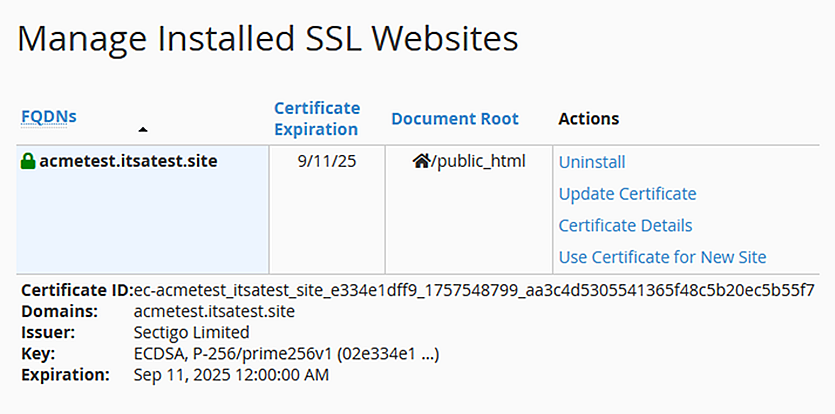
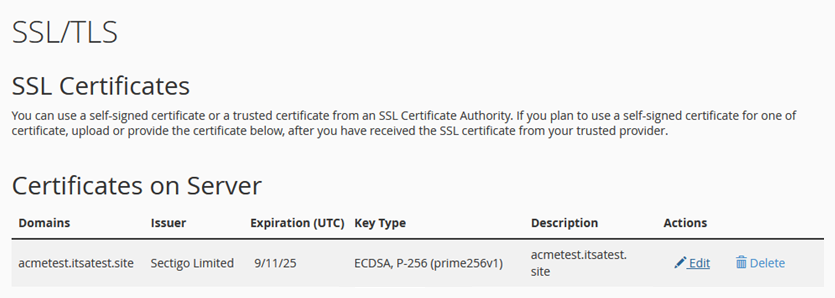
Once deployment is completed, the SSL certificate should appear inside cPanel under:
- SSL/TLS > Certificates
- SSL/TLS > Manage SSL Sites
ACME.sh automatically renews SSL certificates approximately 30 days before expiration. It is recommended to test the renewal process to ensure the server is configured correctly.
Run the following command to force a renewal and redeployment test:
~/.acme.sh/acme.sh --cron --forceAfter the command completes successfully, verify the updated certificate by checking the Certificate ID under Manage SSL Sites.