Install an ACME SSL Certificate on Windows IIS
Install an ACME SSL Certificate on Windows IIS
This guide explains how to install and configure an ACME SSL certificate for a website hosted on a Windows IIS server using Win-ACME.
Before you begin, make sure you have administrator access to the Windows Server, typically through Remote Desktop (RDP). Also ensure that your website already has a valid IIS binding configured for the domain name on at least port 80. Websites configured only with wildcard or catch-all hostnames may not work properly with Win-ACME.
Step 1: Install Win-ACME
Follow the steps below to download and prepare Win-ACME on your Windows server:
- Visit the official Win-ACME website and download the latest release.
- Extract the downloaded ZIP archive to:
C:\Program Files\Win-ACME - Open the extracted folder and double-click the wacs executable file to verify that the application launches successfully.
Step 2: Issue and Install the SSL Certificate
Open PowerShell with administrative privileges and run the following command:
& "C:\Program Files\Win-ACME\wacs.exe" --source iis --host yourdomain.com --store certificatestore --installation iis --baseuri SERVER --eab-key-identifier EAB_KID --eab-key EAB_HMAC_KEY --accepttosReplace the placeholders below with your actual values:
- SERVER = The ACME server URL provided by your Certificate Authority. Example:
https://acme.sectigo.com/v2/DV/ - EAB_KID = The EAB Mac ID provided by your CA.
- EAB_HMAC_KEY = The EAB Mac Key supplied by your CA.
- yourdomain.com = Your full domain name. To secure both www and non-www versions, specify both hostnames as a comma-separated list:
--host "mydomain.com,www.mydomain.com"
If the command returns an error, rerun it with the additional --verbose parameter to display detailed troubleshooting information.
Step 3: Verify the SSL Installation
Once the process completes, open your website using https:// to confirm that the SSL certificate is active.
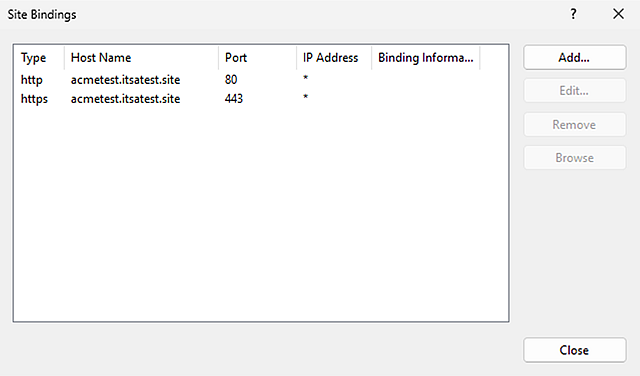
You can also verify the HTTPS binding directly in IIS Manager by navigating to:
Server Manager > Tools > Internet Information Services (IIS) Manager > [Server Name] > Sites > [Website Name] > BindingsYou should see a new HTTPS binding configured on port 443.
To verify that automatic renewal has been configured successfully, run the following command:
& "C:\Program Files\Win-ACME\wacs.exe" --list --baseuri https://acme.sectigo.com/v2/DV/The output should display the installed certificate along with the scheduled renewal configuration.
Important: Win-ACME manages SSL certificates separately for each ACME server. Always specify the correct ACME server using the --baseuri parameter when checking renewal information.