Exchange 2010
Generate CSR in Exchange 2010
-
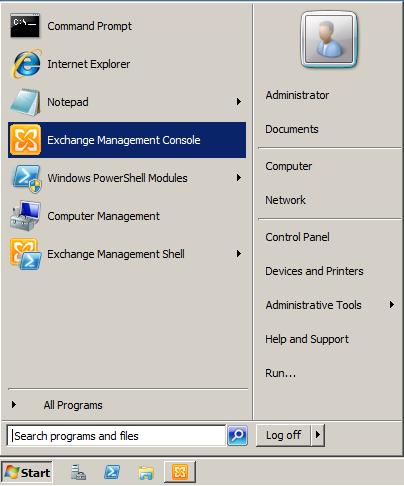
As administrator, open the Exchange Management Console (Start > Exchange Management Console).
-
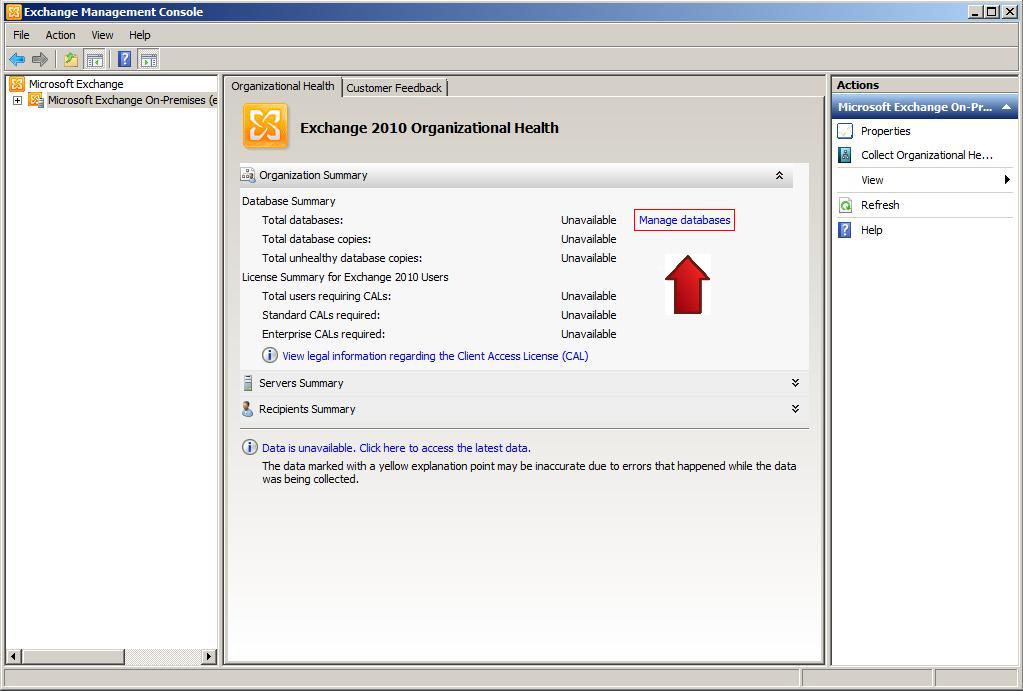
Click Manage databases.
-
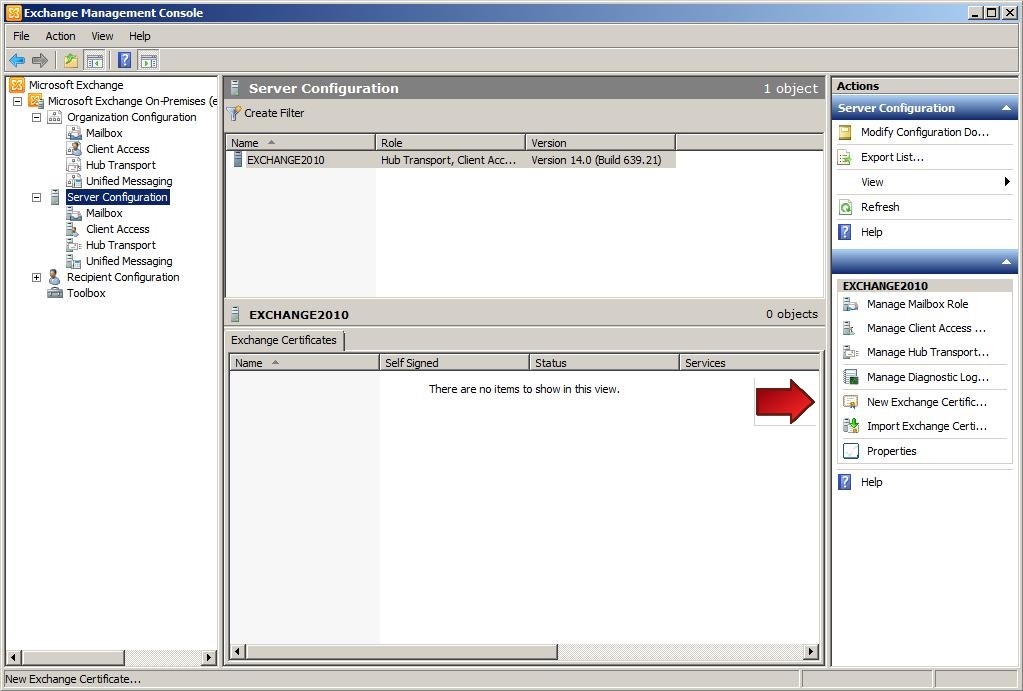
Once you have your new screen loaded, select Server configuration, menu on the left, then select New Exchange Certificate which can be accessed from the “Actions” Menu located to the Right of the screen.
-
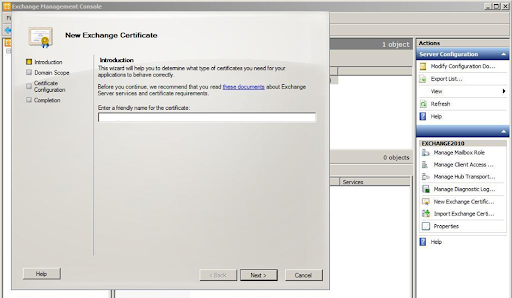
In the New Exchange Certificate wizard, you will be prompted for a Friendly Name, enter a name by which you can remember the certificate. This name will be used to identify the certificate during installation. Once done, click Next.
-
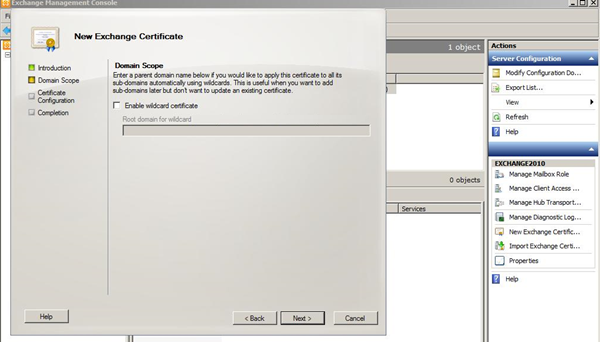
For Domain Scope, click the check box if you are generating the CSR for Wildcard certificate otherwise, click on Next. If you select the Checkbox then you can skip Step 6; and continue to Step 7.
-
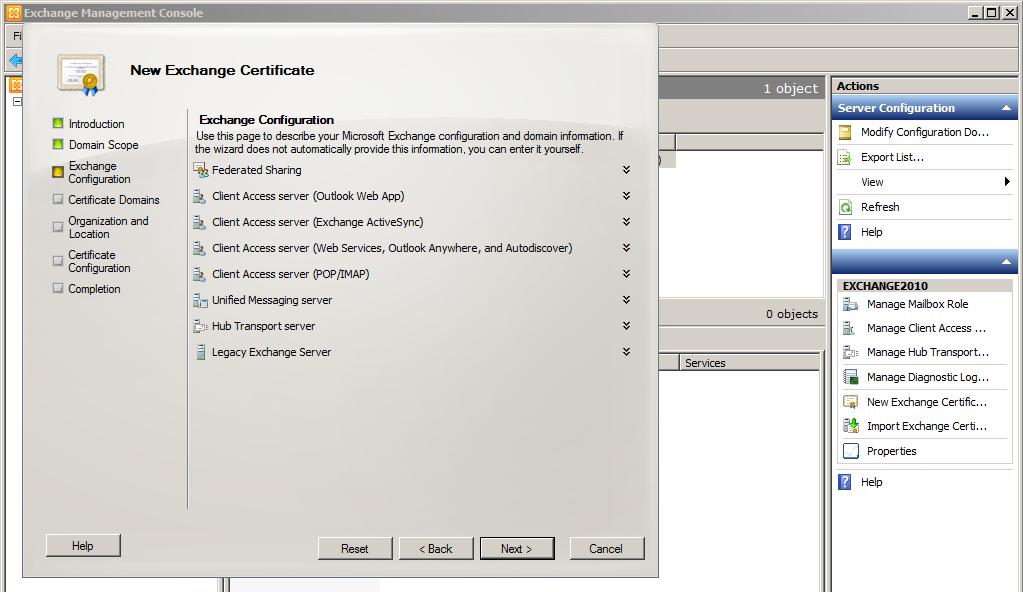
Select the services your Exchange server will be running. This will define your SAN names.
-
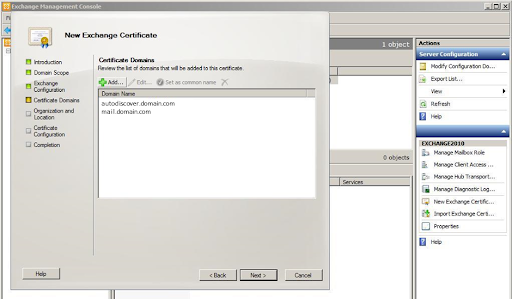
Once completed, this will show the additional domain names that can be added to your certificate. If you need to add extra SAN names, click Add.
-
Enter your organization information, click Browse and specify the path of the location where you want to save the CSR.
Organization: Enter legal name of your company.
Organization unit: Leave it blank.
Country/Region: Enter the name of the Country where your organization is located.
City/Locality: Enter city/locality where your organization is located.
State: If you do not have a state/province, enter the city information again.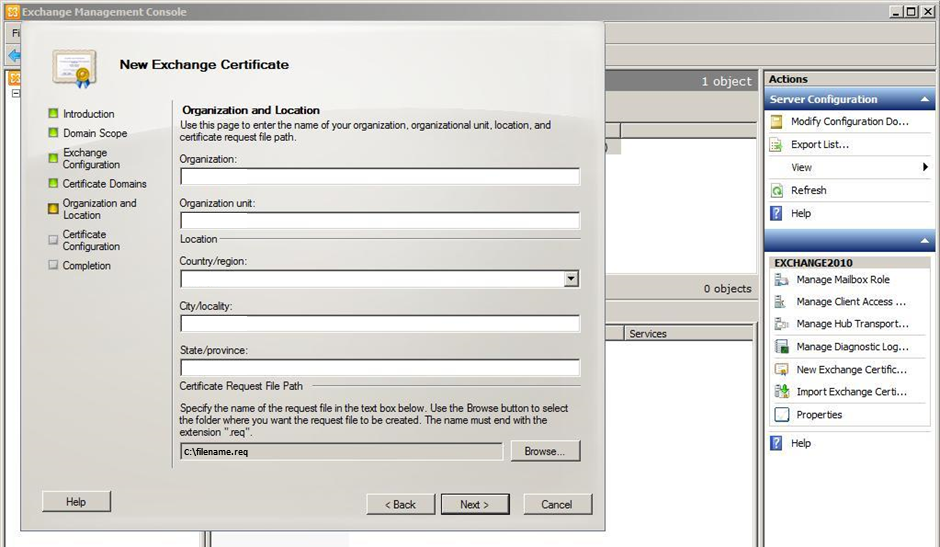
-
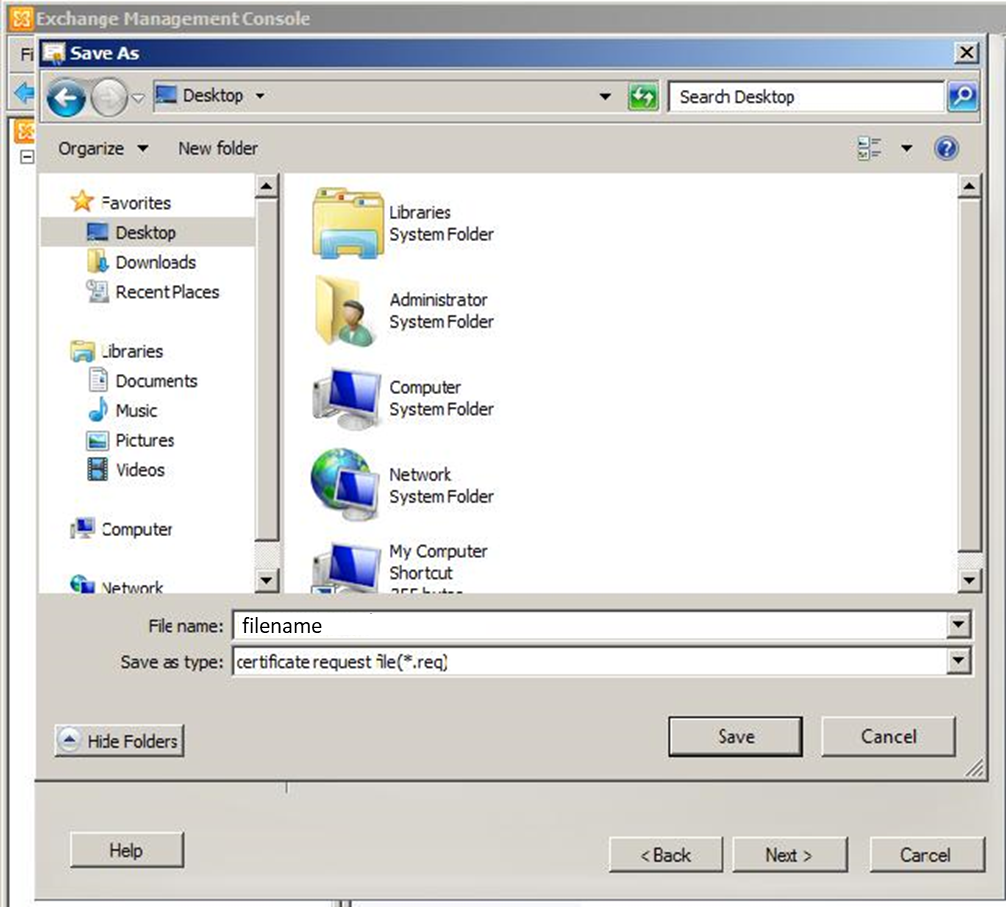
Now, select Browse then save your CSR as a .req file at your preferred location and enter a file name.
-
Click Save, then click Next.
-
The below screen will provide you the page where you can verify the added details. Review the summary, and then click Next.
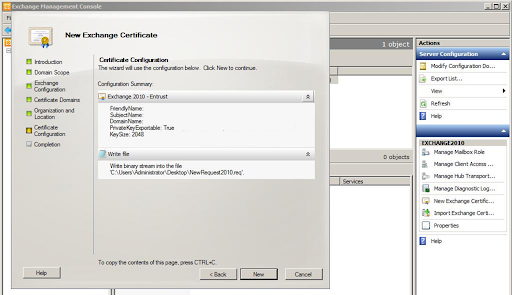
- On the Completion screen, click Finish.
You have completed your certificate signing request. Now you can open the CSR code on your end with any text editor. Use the contents of the CSR file saved on your end , and copy its full content including the —–BEGIN CERTIFICATE REQUEST—– and —–END CERTIFICATE REQUEST—– tags, and paste it into the SSL configuration page.