Direct Admin
-
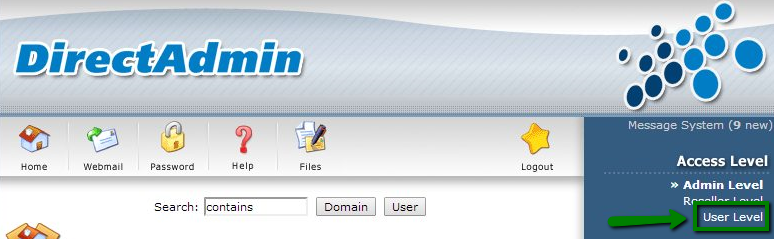
Log into your DirectAdmin account. If you have administrator rights, navigate to the upper right corner, and change the access level from Admin to User level
-
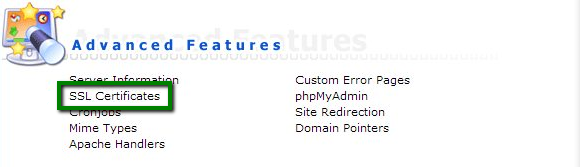
Choose SSL Certificate option from the Advanced Features.
-
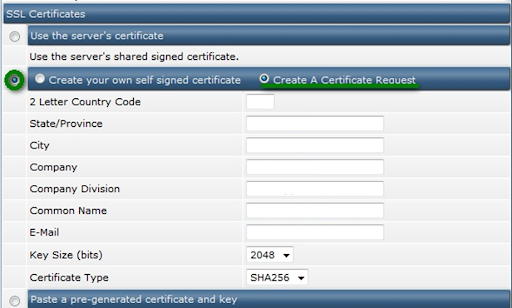
Select the Create A Certificate Request radio button and fill in the required details. The provided information will be provided in the CSR code to the Certificate Authority.
- Two-letter Country Code: Use the two-letter code without punctuation for country, for example: US
- State/Province: Enter the state/province name; do not abbreviate the state or province name, for example: California
- City/Locality: Enter the city where your organization is registered/located. Do not abbreviate.
- Company: Enter the legally-registered name for your business.
- Company Division: Provide the name of division or department within the organization, Such as IT, HR, Finance etc or You can leave it blank.
-
Common Name: Enter fully-qualified domain name, (www.yourdomain.com or yourdomain.com).
Important: If you have a Wildcard certificate, the domain should be specified with an asterisk to secure the subdomains, e.g. “*.yourdomain.com”.
- E-mail: Leave it blank
- Key Size (bits): The key size should be selected 2048 bits from drop down.
- Certificate Type: Select SHA-256.
-
Once all the details are filled in, click Save at the bottom of the page.
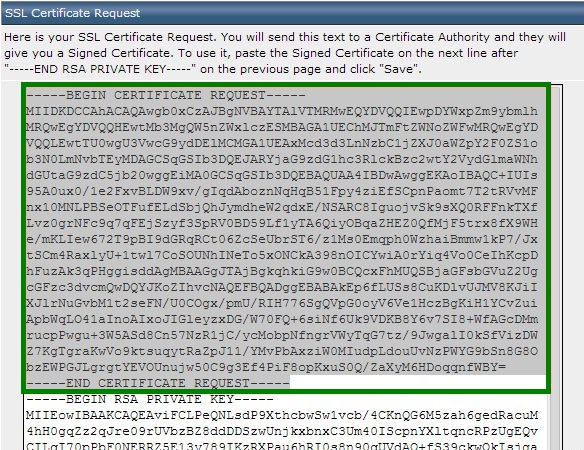
- After that, DirectAdmin will show the CSR code and the private key. You can paste the CSR code into the SSL configuration page. Kindly copy it with the header and footer —–BEGIN CERTIFICATE REQUEST—– and —–END CERTIFICATE REQUEST—–
-
The private key will be required for the installation. Please make sure you save it on your end in a separate file.