AZURE KEY VAULT – CSR Guide
Create certificate request in Azure Key vault
This guide outlines the steps required to generate a CSR for this server or platform.
Azure Key Vault facilitates the storage of digital certificates issued by various certificate authorities (CAs). It enables the generation of a certificate signing request (CSR). A certificate signing request (CSR) functions as a communication sent to a CA for the purpose of soliciting a digital certificate.
- Navigate to the Key Vault where you intend to add the certificate.
- On the properties page, select Certificates.
- Select the Generate/Import tab.
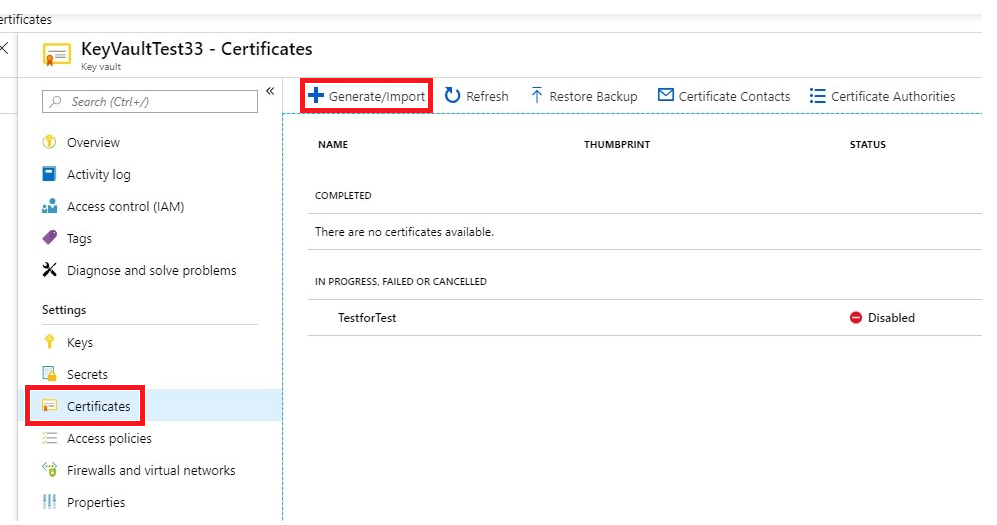
- On the Create a certificate screen, choose the following values:
- Method of Certificate Creation: Generate.
- Certificate Name: EnterFriendlyNameOfCertificate.
- Type of Certificate Authority (CA): Certificate issued by a non-integrated CA.
- Subject: “CN=www.yourdomainname.com“.
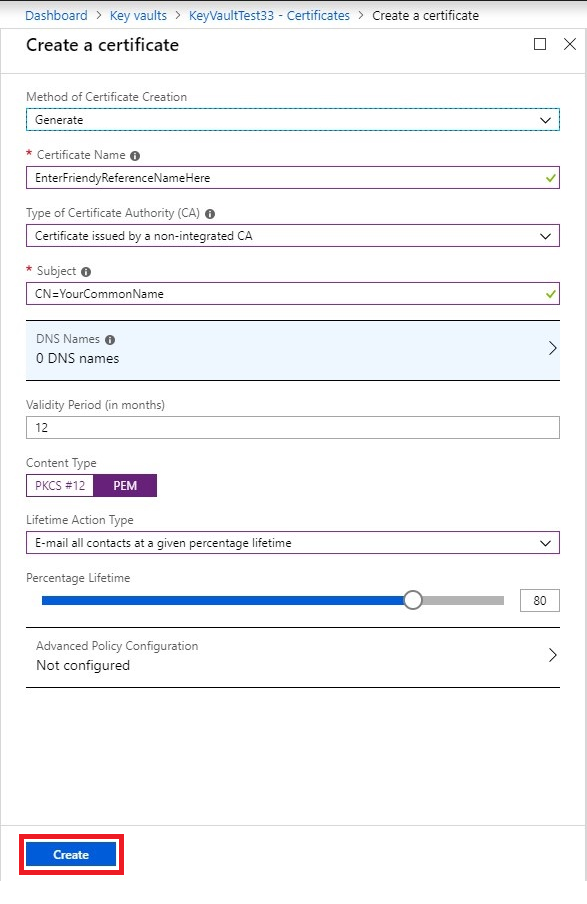
- Customize the “Advanced Policy Configuration” if required (for advanced users), and then Click the Create button to add the certificate request to the list of certificates.
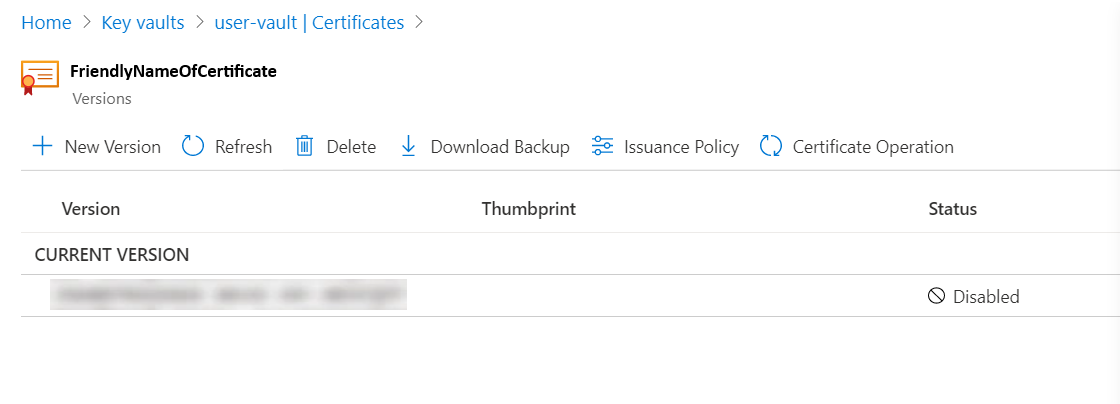
- From the list of certificates, Click the newly added certificate. Keep in mind that the certificate’s current status will likely be disabled since it has not yet been issued by the Certificate Authority (CA).
- On the Certificate Operation tab, select Download CSR.
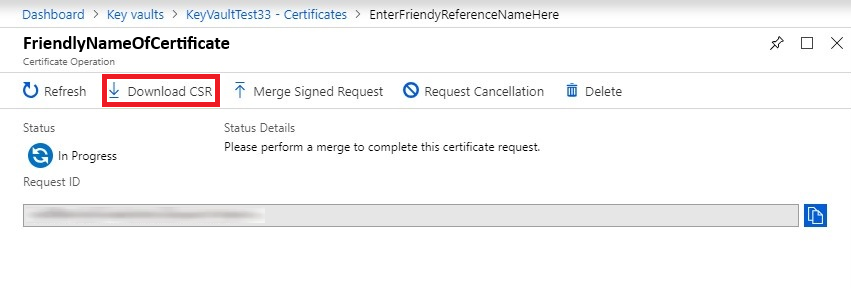
- With the Certificate Signing Request (CSR) available on your end, you can now move forward and configure the order to obtain the certificate from the CA.