Amazon Lightsail
Generating CSR in Amazon Lightsail
To generate that CSR file, you need to do it on the machine (SSH into it).
- Connect to your Amazon Lightsail instance using SSH.
- Type the following Command in the SSH browser to generate the CSR and Private key files.
Note: Make sure to replace server with the name of your domain.
openssl req -new -newkey rsa:2048 -nodes -keyout server.key -out server.csr - Enter the required details in requested fields:
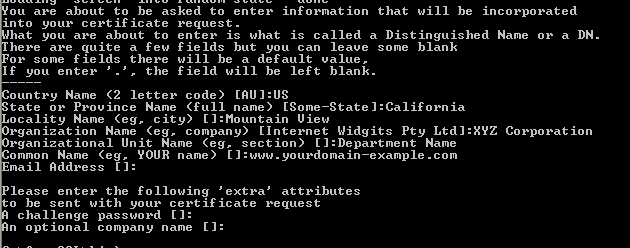
Country Name: Enter the two-letter code of the Country where your organization is registered. Example: US.
State/Province: Enter the full name of State/province where your company is registered.
Locality/City: Enter the full name of the city/locality where your company is registered.
Company/Organization: Enter the full legal name of your company.
Organizational Unit: Enter the department of your company such as IT, HR etc.
Common Name: Enter the fully qualified domain name for which the SSL will be activated (www.yourdomain.com or yourdomain.com).Note: If you are generating an CSR for a Wildcard certificate, make sure your common name starts with an asterisk (e.g., *.example.com).
- When asked for email address, leave it blank.
- When asked for a passphrase (challenge password), leave it blank.
- When asked for an Optional Company Name, leave it blank.
- It will generate two files: server.key and server.csr. Open the .csr file with a text editor. Copy the text, including the —–BEGIN NEW CERTIFICATE REQUEST—– and —–END NEW CERTIFICATE REQUEST—– tags, and paste it into the SSL configuration page.
Note: Copy server.key this is the private key and should be saved on your end as it will be required for installation.