Install to Web Server
1. Open Internet Information Services Manager (IISM) to the appropriate Server
Start -> Administrative Tools -> IISM -> Server Name
2. Open the Server Certificates icon.
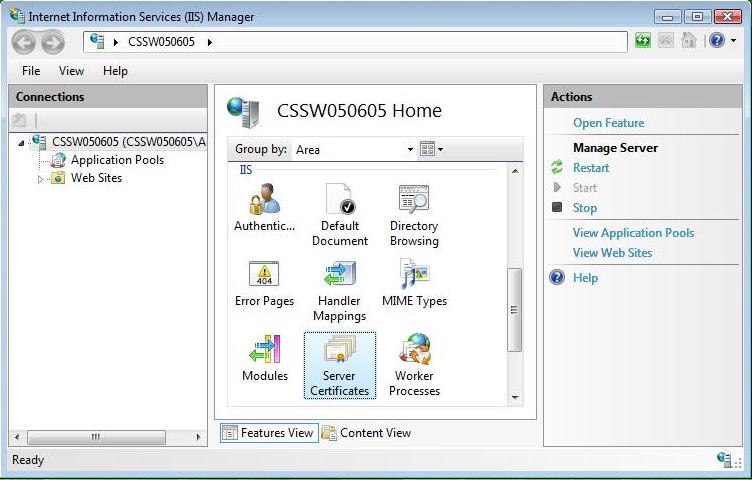
3. Open ‘Complete Certificate Request’ Wizard
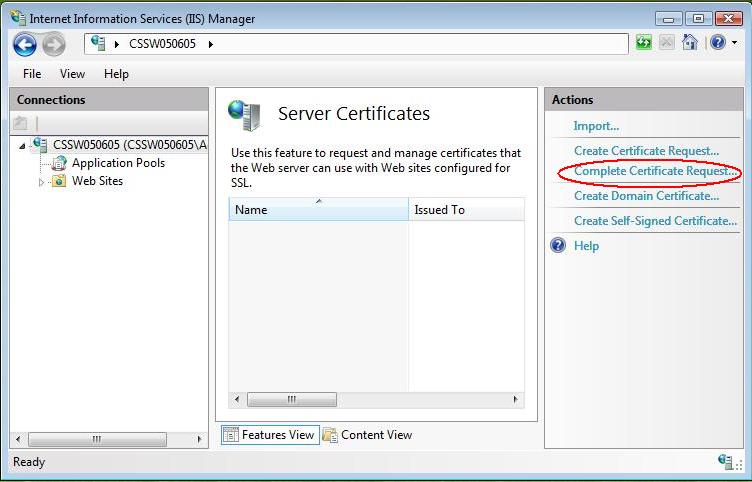
From the ‘Actions’ Menu on the right select ‘Complete Certificate Request’
4. Proceed to Complete Certificate Request’ Wizard
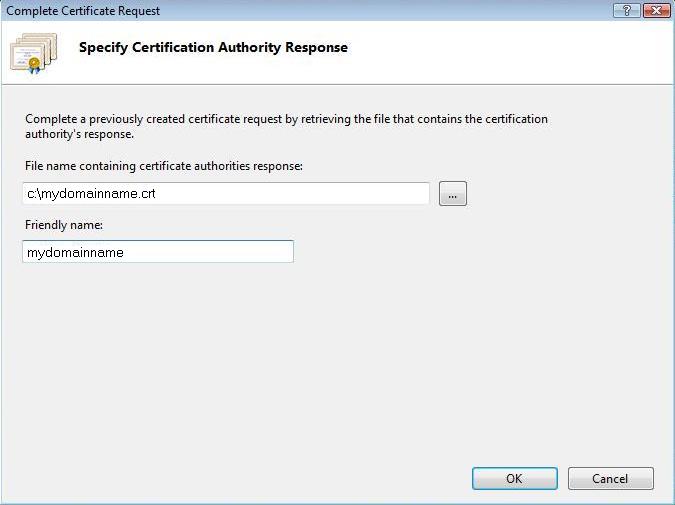
Fill out all appropriate information. You may need to browse to the location of the certificate or you may Specify it in the provided box. The friendly name is not part of the certificate itself, but is used by the server administrator to easily distinguish the certificate.
Assign to Website
1. Navigate back to the root of the appropriate website. The center of the window should say “Default Website Home” or whatever the name of the website is.
2. Select ‘Bindings’ from the ‘Edit Site’ sub menu.
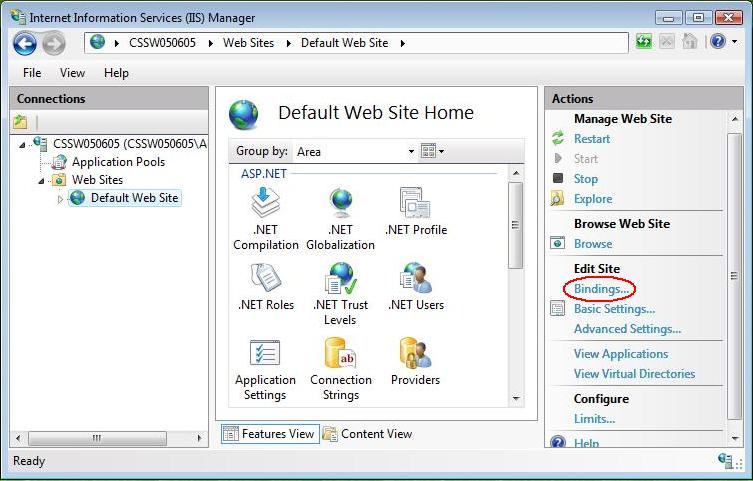
3. Add Port 443
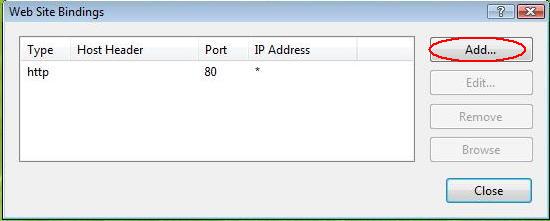
In the ‘Site Bindings’ window, Proceed by clicking ‘Add’. This will open the ‘Add Site Binding’ window.

Under ‘Type’ choose https. The IP address should be the IP address of the site or All Unassigned, and the port over which traffic will be secured by SSL is usually 443. The ‘SSL Certificate’ field should specify the certificate that was installed using the above steps.
Proceed by clicking ‘OK’ to save changes.
Note: There may already be an ‘https’ entry in this area. If so, Proceed by clicking ‘https’ to highlight it. Once done, Proceed by clicking ‘Edit’ and in the ‘SSL certificate’ area select the friendly name that was generated earlier. Proceed by clicking ‘OK’ to save changes.
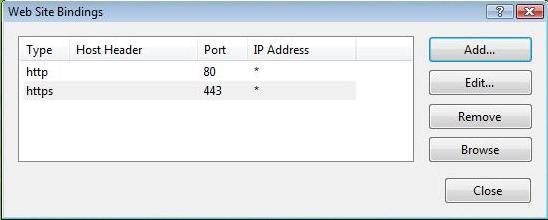
Proceed by clicking ‘OK’ on the ‘Web Site Bindings’ Window to complete the install.
Important: You must now restart IIS / the website to complete the install of the certificate.