SSL Certificate Installation for Cisco ASA 5500 VPN
Installing your SSL Certificate in the Adaptive Security Device Manager (ASDM)
- Download your Intermediate and Primary Certificate files to the directory where you will keep your certificate files.
- In ASDM select “Configuration” and then “Device Management.”
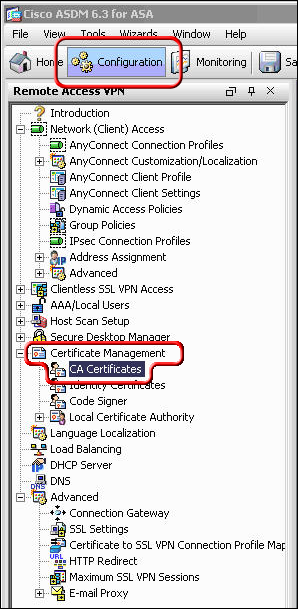
- Expand “Certificate Management” and select “CA Certificates” and then “Add.”
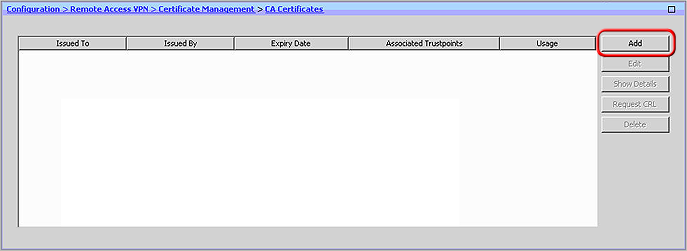
- With the option selected to “Install from a file,” browse to the chain.crt file and then Proceed by clicking the “Install Certificate” button at the bottom of the “Install Certificate” window.
Your Intermediate (or chain) certificate file is now installed. You will now need to install the your_domainname_com.crt file. - In ASDM select “Configuration” and then “Device Management.”
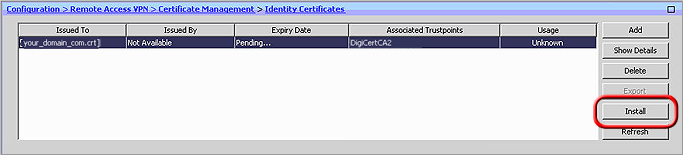
- Expand “Certificate Management” and select “Identity Certificates.”
- Select the appropriate identity certificate from when your CSR was generated (the “Issued By” field should show as not available and the “Expiry Date” field will show Pending…). Proceed by clicking the Install button.
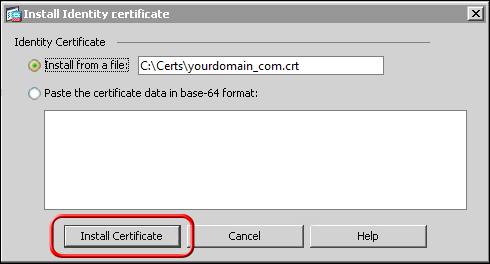
- Browse to the appropriate identity certificate (the your_domainname_com.crt provided by CA) and Proceed by clicking “Install Certificate.”
At this point you should receive confirmation that the certificate installation was successful.
Configuring WebVPN with ASDM to Use the New SSL Certificate
- In ASDM select “Configuration” and then “Device Management.”
- Proceed by clicking “Advanced” and then “SSL Settings.”
- From “Certificates,” choose the interface used to terminate WebVPN sessions, and then choose “Edit.”
- From the “Certificate” drop-down, select the newly installed certificate, then “OK,” and then “Apply.”
Configuring your certificate for use with the selected kind of WebVPN session is now complete.
SSL Certificate Installation from the Cisco ASA command line (alternate installation method)
- From the ciscoasa(config)# line, Specify the following text:
crypto ca authenticate my.trustpointWhere my.trustpoint is the name of trustpoint created when your certificate request was generated. - Next, Specify the entire body of the chain.crt file followed by the word “quit” on a line by itself (the chain.crt file can be opened and edited with a standard text editor, and the entire body of that file should be entered when prompted).
- When asked to accept the certificate, Specify “yes”.
- When the certificate has been successfully imported, Specify “exit”.Your Intermediate (or chain) certificate file is now installed. You will now need to install the your_domainname_com.crt file.
- From the ciscoasa(config)# line, Specify the following text:
crypto ca import my.trustpoint certificateWhere my.trustpoint is the name of trustpoint created when your certificate request was generated. - Next, Specify the entire body of the your_domainname_com.crt file followed by the word “quit” on a line by itself (the your_domainname_com.crt file can be opened and edited with a standard text editor, and the entire body of that file should be entered when prompted).You should then receive a message that the certificate was successfully imported.
Configuring WebVPN to Use the New SSL Certificate from the Cisco ASA command line
- From the ciscoasa(config)# line, Specify the following text:
ssl trust-point my.trustpoint outside

wr mem
Where my.trustpoint is the name of trustpoint created when your certificate request was generated and “outside” is the name of the interface being configured.
Make sure to save the configuration.