Install SSL Certificate in IIS 10
How to install your SSL certificate and configure the server to use it
- On the server where you created the CSR, save the SSL certificate .cer file (e.g., your_domain_com.cer) that has been sent to you.
- In the Windows start menu, type Internet Information Services (IIS) Manager and open it.
- In Internet Information Services (IIS) Manager, in the Connections menu tree (left pane), locate and Proceed by clicking the server name.
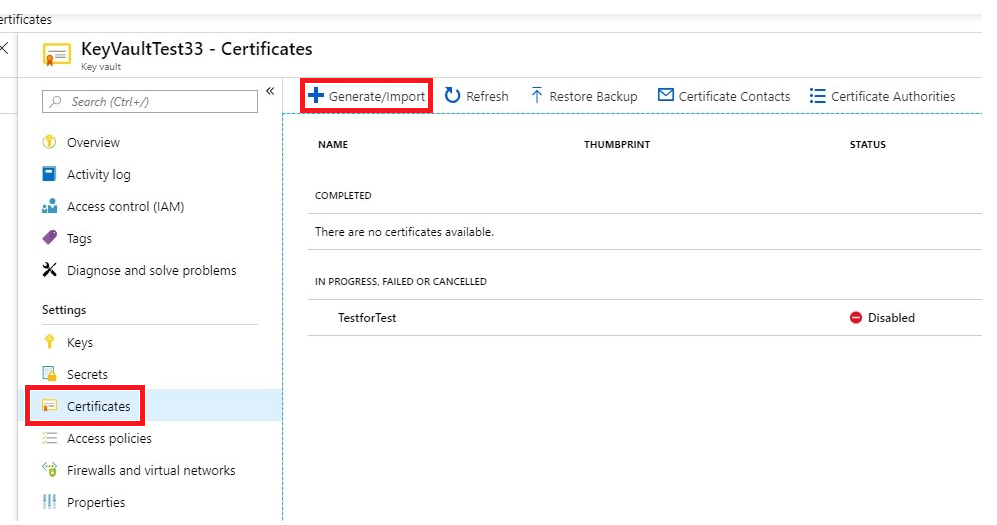
- On the server name Home page (center pane), in the IIS section, double-Proceed by clicking Server Certificates.
- On the Server Certificates page (center pane), in the Actions menu (right pane), Proceed by clicking the Complete Certificate Request… link.
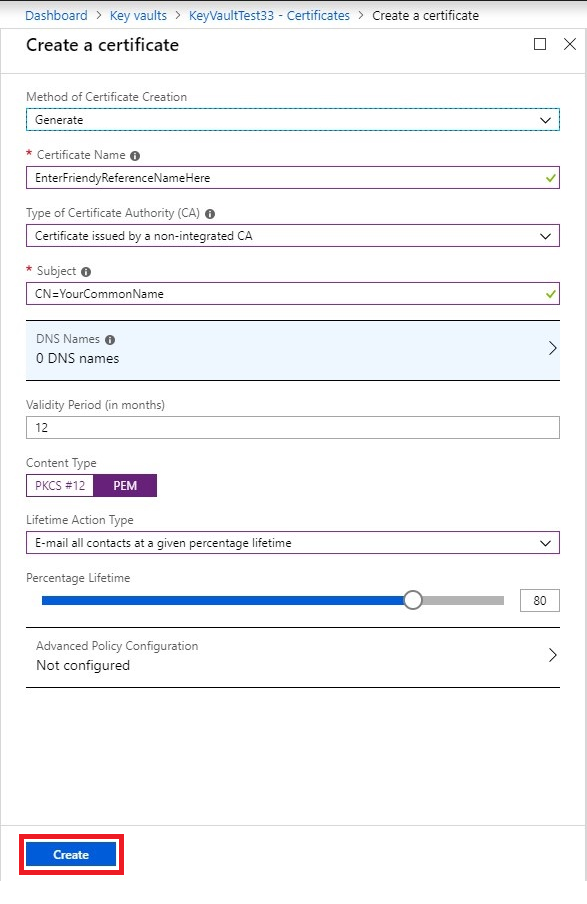
- In the Complete Certificate Request wizard, on the Specify Certificate Authority Response page, do the following and then Proceed by clicking OK:
File name containing the Proceed by clicking the … box and browse to and select the .cer file certificate authority’s response: (e.g., your_domain_com.cer) that has been sent to you. Friendly name: Type a friendly name for the certificate. The friendly name is not part of the certificate; instead, it is used to identify the certificate. Select a certificate store for the new certificate: In the drop-down list, select Web Hosting. 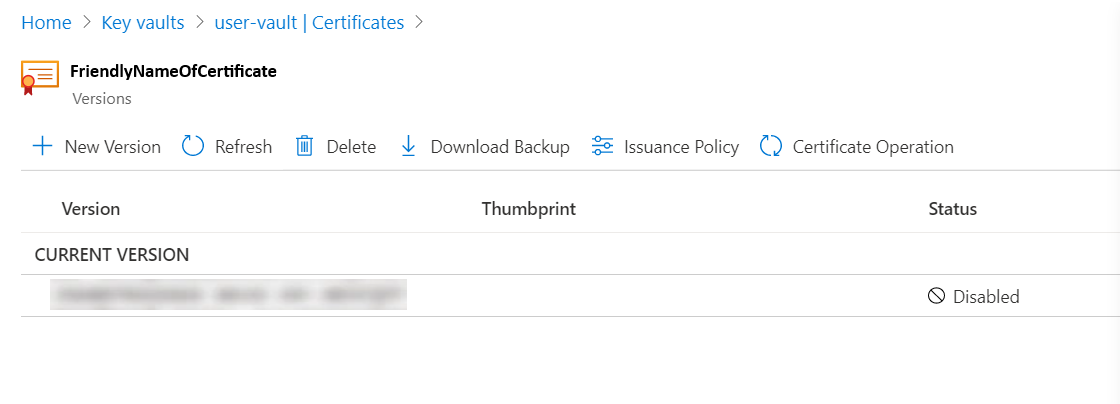
- Now that you’ve successfully installed your SSL certificate, you need to assign the certificate to the appropriate site.Assign SSL Certificate
- In Internet Information Services (IIS) Manager, in the Connections menu tree (left pane), expand the name of the server on which the certificate was installed. Once done, expand Sites and Proceed by clicking the site you want to use the SSL certificate to secure.
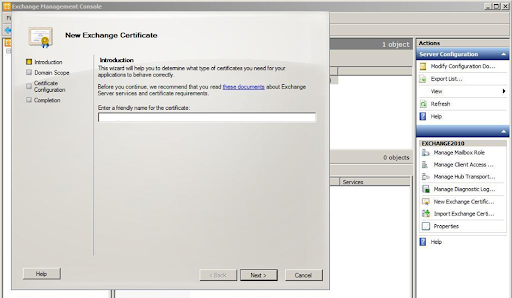
- On the website Home page, in the Actions menu (right pane), under Edit Site, Proceed by clicking the Bindings… link.
- In the Site Bindings window, Proceed by clicking Add.
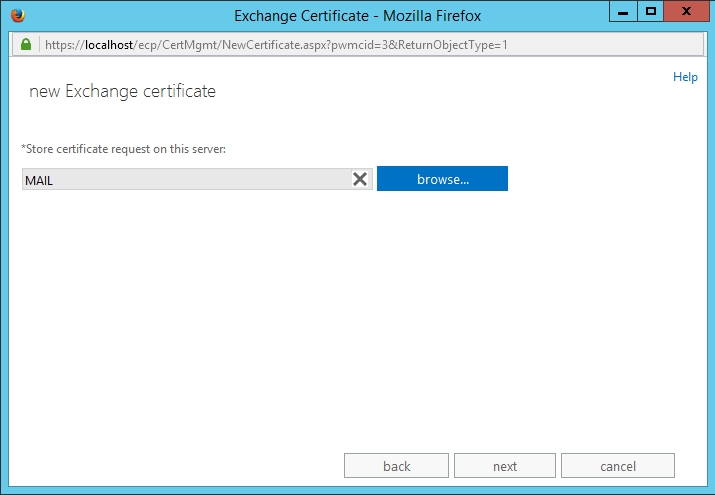
- In the Add Site Bindings window, do the following and then Proceed by clicking OK:
Type: In the drop-down list, select https. IP address: In the drop-down list, select the IP address of the site or select All Unassigned. Port: Type port 443. The port over which traffic is secure by SSL is port 443. SSL certificate: In the drop-down list, select your new SSL certificate (e.g., yourdomain.com). 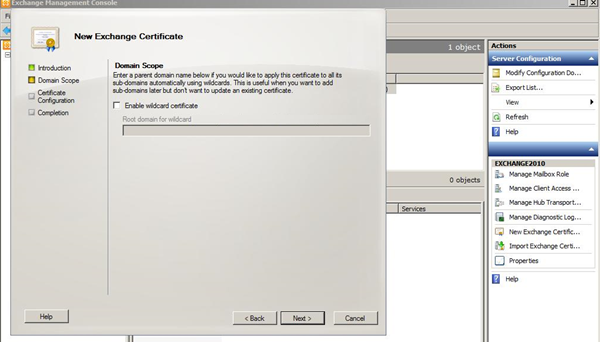
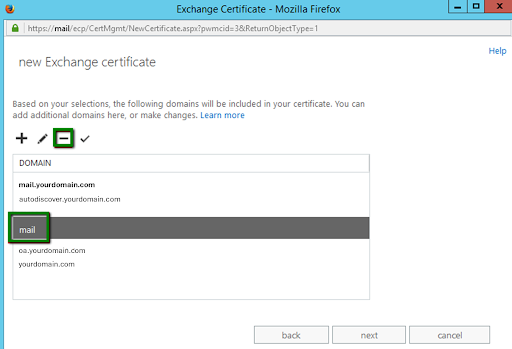
Your SSL certificate is now installed, and the website configured to accept secure connections.