Installing your SSL Certificate on Microsoft IIS 5.x / 6.x
Note: Please have a copy of your SSL certificate handy. This will either be your_domain.crt or your_domain.cer as this file will be used during the installation process.
Typically, CER files contain the: Root, Intermediate and Domain Certificate all rolled into one whereas, CRT is just the certificate.
1. Open up the Control Panel and open Administrative Tools.
Note: Some versions of Windows Adminstrative Tools can be found on the Start Menu under All Programs.
2.Double-Select Internet Services Manager.
Note:Some version of Windows call this: Internet Information Services.
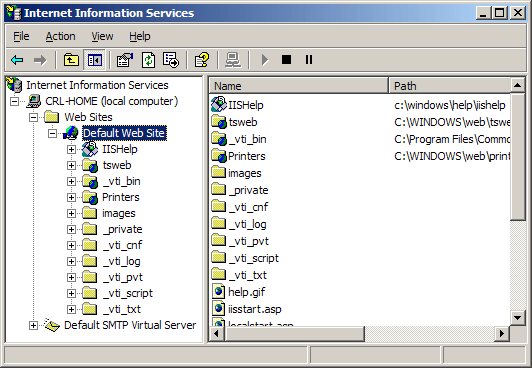
3.Right-Choose the website and left-Choose Properties
4. Choose the Directory Security Tab.
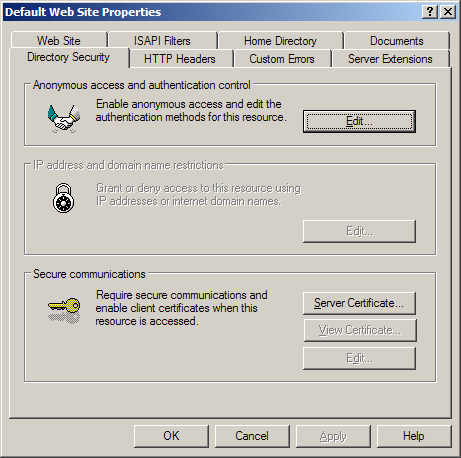
5.Select Server Certificate. The following wizard will appear:
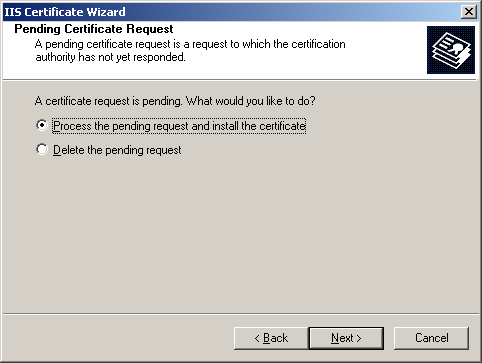
6.Choose to Process the Pending Request and Install the Certificate and then Select Next.
7.Provide the location or browse to the location of the SSL Certificate file and then Select Next.
8.Read the summary screen to be sure that you are processing the correct certificate and then Select Next.
9.You will see a confirmation screen. When you have read this information, Select Next.
10.Stop and Start the appropriate website.
11.You now have an SSL certificate installed for use on IIS.