Apple Mac OS X Server 10.7
Certificate Signing Request (CSR) Generation Instructions for Apple Mac OS X Server 10.7
Note:
To generate a CSR, you will need to create a key pair for your server. These two items are a digital certificate key pair and cannot be separated. If you lose your public/private key file or your password and generate a new one, your SSL Certificate will no longer match.
Step 1: Start Profile Manager
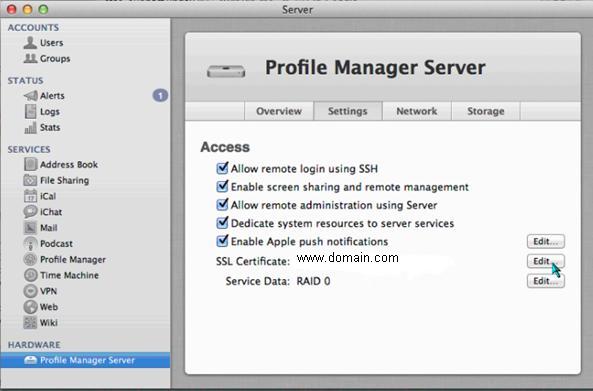
- Login to the server, and in the Services list, click Profile Manager.
- Make sure to choose the “Settings” option, then click on “Edit” button.
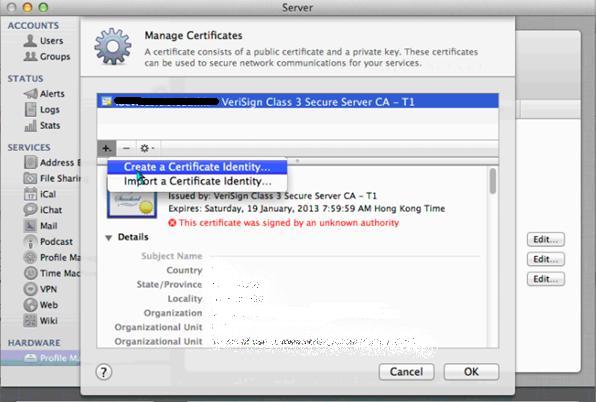
- In the Manage Certificates screen, click on the plus sign and choose ” Create a Certificate Identity”
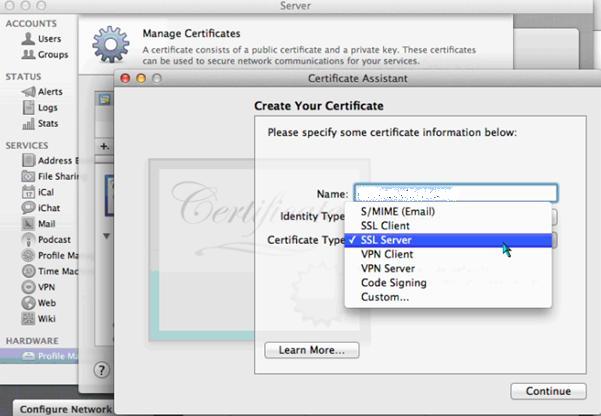
- Please make sure to tick “SSL Server” in the Certificate Type. Also enter a name for the certificate for reference.
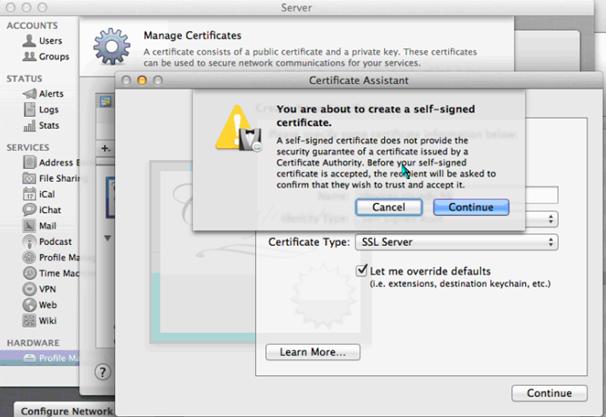
- This step would create a self-signed certificate, which is required before you can generate a new CSR.
Step 2: Generate the CSR
- In the Certificate Information page, leave the value as default.
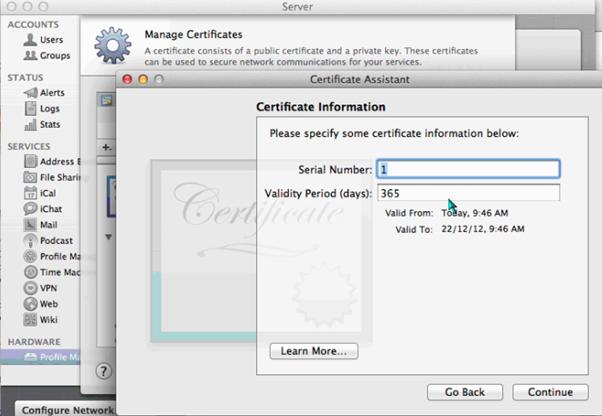
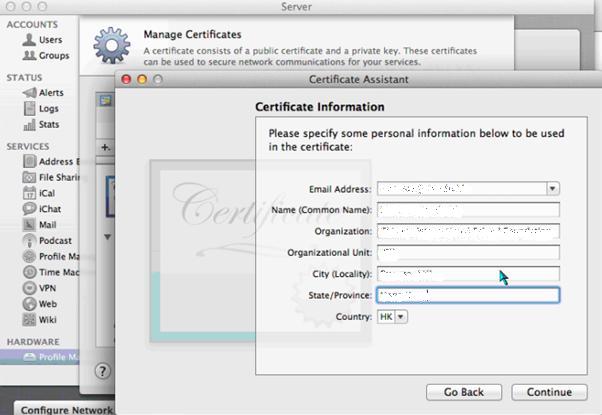
- Next please enter the distinguish name of your CSR
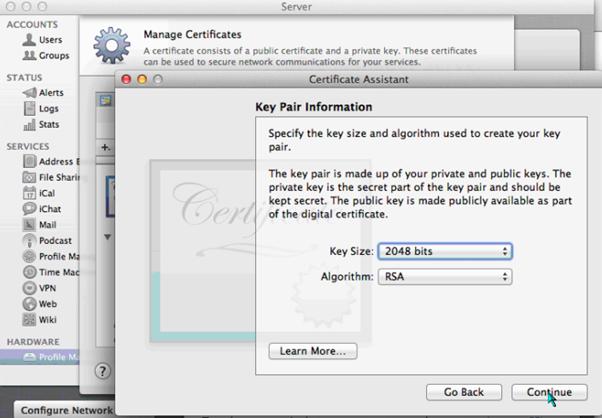
- Select keysize as 2048 bit.
- Leave the key extension as default.
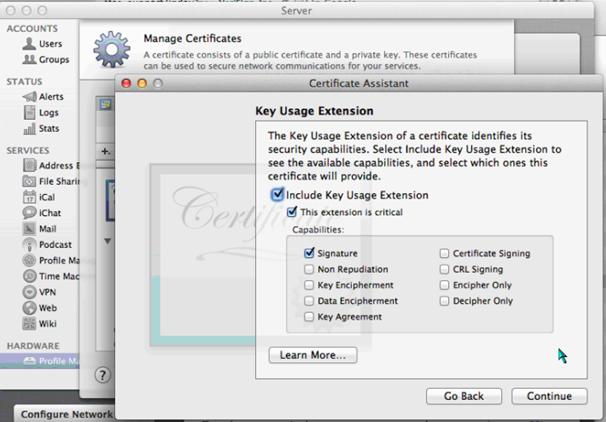
- At this stage, you can enter the Subject Alternate Name if you like
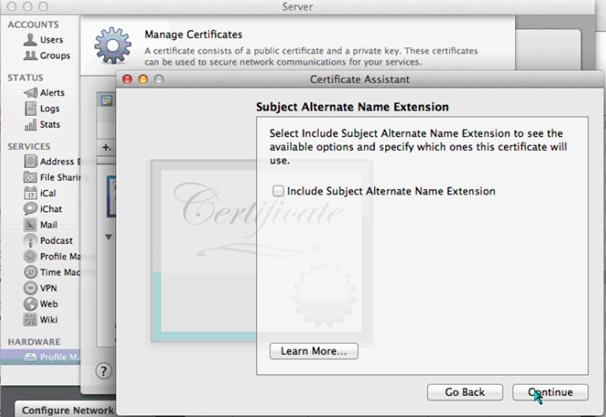
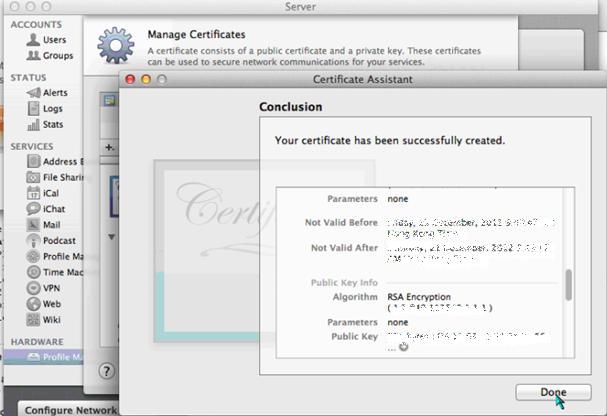
- You would see a certificate summary page
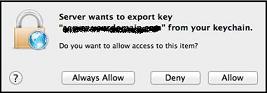
- Click on “Allow” to export the key
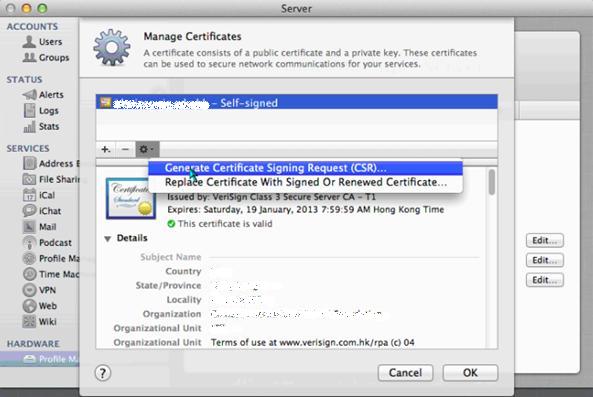
- Go back to server.app and then Manage certificates
- Now click on Create Certificate Signing Request (CSR) as shown in the diagram below.
- You should see a CSR at this stage.
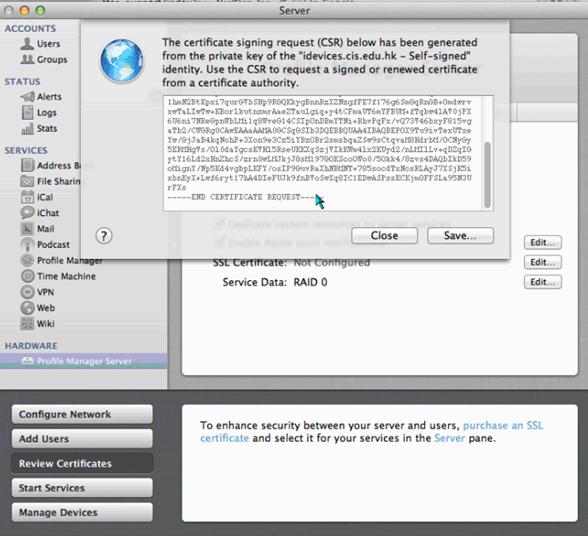
- Use this CSR for enrolment of your SSL certificate.
Note:
During the enrolment open the file you created from the above steps and copy the contents into the enrollment form
when requested for the CSR. - Verify your CSR